Monday, November 29, 2010

HOW TO: Update / Unlock iPhone 3GS / 3G Baseband 06.15.00 with Redsn0w 0.9.6b5 on iOS 4.2.1 / 4.1 [Mac & Windows]

Well, here's the iPhone Dev-Team has just released redsn0w 0.9.6b5 to jailbreak iPhone 3GS and 3G on iOS 4.2.1 and update baseband to 06.15.00 which can be unlocked with the newly released ultrasn0w 1.2, the redsn0w 0.9.6b5 is available for both windows and mac users.


The new redsn0w 0.9.6beta5 is out. It gives both Windows and OSX users the ability to flash the iPad 06.15 baseband on iPhone3G or iPhone3GS. It fetches the baseband files directly from Apple for now (the only IPSW you ever point it at is the stock IPSW for the FW on your iPhone right now). There may be a long delay while it’s doing this (their servers are currently getting pounded).

WARNING — YOU DO THIS AT YOUR OWN RISK!  PLEASE UNDERSTAND THE CONSEQUENCES OF UPDATING TO 06.15.
  1. There is no way to come back down from 06.15, and there’s no hiding the baseband version from Apple. You’ll be voiding your warranty in a very obvious way.
  2. If some future baseband comes out with a critical fix, you won’t be able to update to it if it remains down in the 05.xx sequence (then again, you wouldn’t update to it if you wanted to keep your unlock anyway).
  3. Starting with FW 4.2.1 if you have 06.15 on your iPhone you won’t ever be able to restore to stock firmware (it will fail).  You’ll need to only restore to custom IPSWs (then again, if you’re unlocker you should already be doing that).
For whom is this Guide:
This version of redsn0w 0.9.6b5 is developed ONLY for iPhone 3GS and 3G users who rely on unlock. Precisely,  This guide showing how to jailbreak and update baseband to 06.15.00 for ONLY iPhone 3GS and 3G who have unlocked devices.

Unsupported devices, what have to do:
iPhone 4 and 3GS users who don't rely on unlock, you can follow the same guide but with redsn0w 0.9.6b4 to jailbreak their devices on iOS 4.2.1.
Here's the step by step guide:

STEP 1: Download redsn0w 0.9.6b5,  iOS 4.2.1 for your device
STEP 2: Update to 4.2.1 firmware using the IPSW file you just downloaded via iTunes 10.1.

STEP 3: Launch Redsn0w 0.9.6b5,  and browse for iOS 4.2.1 firmware final version.


STEP 4: Now you have to select "Install Cydia" and "Install iPad baseband", and then click "Next" (in this step redsn0w will update your baseband to 06.15.00 which works with ultrasn0w 1.2)

STEP 5: Now make sure your device is both OFF and PLUGGED IN to the computer before you click “Next”.
 
 
STEP 6: At this stage you will need to put your iPhone in DFU mode by holding “Power” button and then while holding the “Power” button, you will now have to hold “Home” button too. Now after few seconds release “Power” button but keep holding “Home” button until installation begins.

 
STEP 7: You will Get a Jailbroken Device on the latest iOS 4.2.1  and the unlockable baseband 06.15.00

STEP 8: This step is only for these devices iPhone 4, 3GS (New Bootrom), iPod touch 4G,  3G, 2G, iPad. While this is tethered jailbreak and whenever you want to do anything related to jailbreak like SSH your device, or running Cydia, you must first run your device in the so called “jailbroken state” on every reboot by using “Just boot tethered right now” option.

After that Unlock using Ultrasnow

The new redsn0w 0.9.6beta5 Released

The new redsn0w 0.9.6beta5 is out.  It gives both Windows and OSX users the ability to flash the iPad 06.15 baseband on iPhone3G or iPhone3GS.  It fetches the baseband files directly from Apple for now (the only IPSW you ever point it at is the stock IPSW for the FW on your iPhone right now).  There may be a long delay while it’s doing this (their servers are currently getting pounded).
  • OSX     (SHA1 a322ec2c9e91993eca21abaf2e655bb44de3d7d4)
  • Windows     (SHA1 7250416e17c3aea9838cdfc73712b38b025e2ed0)   (Windows 7 and Vista users, please run redsn0w as Administrator in “XP Compatiblity Mode”)
If you do flash your baseband via redsn0w, please keep it plugged into USB the whole time.  You don’t want your battery to die during the flash process!

HOW TO: Update iPhone 3GS / 3G Baseband to 06.15.00 and Unlock it

Just a couple of hours back, the iPhone Dev Team has updated their carrier unlock tool which brings unlock for iPhone 3GS & 3G on iOS 4.1 or iOS 4.2.1 but unfortunately, you have to update your device's baseband to 06.15.00 to be able to unlock it.


Simply follow the steps below to jailbreak and unlock your iPhone 3G on iOS 4.2.1 using PwnageTool 4.1.3 for Mac OS X.

STEP 1: Download PwnageTool 4.1.3 unlock edition from here.

STEP 2: Download iOS 4.2.1 for your device and also catch iOS 3.2.2 from here before it's removed (required to update the baseband). Then copy all the files to your desktop.

STEP 3: Now launch PwnageTool and select iPhone 3GS / 3G and point it to the original iOS 4.2.1 firmware you downloaded.


STEP 4: You'll now be asked if you want to update your baseband to the 06.15 version. If you are on 05.14 or 05.15 or higher you will need to do this to unlock. You do not need to do this for jailbreak only. Click on YES and then select Browse for IPSW and point it to iOS 3.2.2 you downloaded.
STEP 5: You'll have to choose some options as installing Cydia packages, custom logos and packages. Finally, hit the blue the build button.
STEP 6: You'll be asked to save the cooked firmware. Please allow up to 10 minutes.
STEP 7: When prompted if your iPhone has been Pwned before, we clicked No. It allows for a more thorough restore. Once done, follow the instructions seen on the screen to enter into DFU mode
STEP 8: Now, You will have to restore your iPhone to the jailbroken custom firmware by Clicking on the iPhone icon on the left sidebar of iTunes then hold left “alt” button (“Shift” button on Windows) on the keyboard and then click on “Restore” then release the alt button, Now Select the custom firmware created by PwnageTool and Let iTunes go in a bunch of steps.

STEP 9: Almost done, you can now unlock your iPhone 3GS / 3G

Ultrasn0w 1.2 Unlocks iPhone 3GS, 3G on iOS 4.2.1 [How to Guide]

The iPhone Dev Team has just released ultrasn0w 1.2 which brings carrier unlock for iPhone 3GS and iPhone 3G on iOS 4.2.1 or iOS 4.1.

From the iPhone Dev Team Blog:

Today we’re pleased to announce our free carrier unlock for iPhone3G/3GS owners with a baseband later than 05.13.04.  The unlock for that baseband exploited the AT+XAPP command, thanks to a crash initially discovered by @sherif_hashim (@Oranav also found this crash).  So what hole are we exploiting today, since Apple closed that AT+XAPP hole?  Well, we’re exploiting the exact same hole!

It turns out that the very first iPad firmware 3.2.2 has baseband version 06.15.00 still vulnerable to AT+XAPP.  The iPad baseband is built for the exact same baseband chip as the iPhone3G/3GS — they’re fully compatible!  Some of us have been running 06.15 for weeks now on our iPhones in preparation for this release.

Since 06.15 is a higher version than 05.14 or 05.15 (where AT+XAPP is gone), anyone stuck at those versions can simply upgrade to 06.15 to unlock again!  Luckily for us, Apple *still* provides the iPad FW 3.2.2 with this vulnerable baseband right from their own servers. (Grab it now, before they take it down!)
We’ve been busy updating both PwnageTool and redsn0w to make the baseband update as seamless as possible.
  1. First up is “PwnageTool 4.1.3 Unlock Edition”.  It has a special dialog box which will ask you if you want to update to the iPad baseband.  You must already have the iPad 3.2.2 IPSW on your computer….so just point PwnageTool at it (or let it find it on its own if you’re in “simple” mode).
  2. Directly after PwnageTool 4.1.3 is available, the official ultrasn0w repo http://repo666.ultrasn0w.com will be updated with ultrasn0w 1.2, which covers iPhone 4 baseband 01.59.00 and iPhone 3G/3GS basebands 04.26.08, 05.11.07, 05.12.01, 05.13.04 and now 06.15.00.
  3. Finally, we’ll release an update to redsn0w today for those without Macs and can’t run PwnageTool.  The new redsn0w will give you the option to update your baseband to 06.15 too.
WARNING — YOU DO THIS AT YOUR OWN RISK!  PLEASE UNDERSTAND THE CONSEQUENCES OF UPDATING TO 06.15.
  1. There is no way to come back down from 06.15, and there’s no hiding the baseband version from Apple.  You’ll be voiding your warranty in a very obvious way.
  2. If some future baseband comes out with a critical fix, you won’t be able to update to it if it remains down in the 05.xx sequence (then again, you wouldn’t update to it if you wanted to keep your unlock anyway).
  3. Starting with FW 4.2.1 if you have 06.15 on your iPhone you won’t ever be able to restore to stock firmware (it will fail).  You’ll need to only restore to custom IPSWs (then again, if you’re unlocker you should already be doing that).
Certainly don’t update to 06.15 if you don’t need to!  Only do this if you need the unlock and you’re stuck on 05.14 or 05.15, and you’re willing to assume the above risks.

This PwnageTool also contains a 4.2.1 bundle for iPhone3G owners…for all else, it’s still only 4.1.  If you have an iPhone3GS with an old bootrom, the new redsn0w will handle 4.2.1 for you (in fact it covers 4.2.1 for all devices, even though some of them are still tethered at 4.2.1 until @comex can work some untethering magic).  iPhone3GS users with old bootroms who want to go to 4.2.1 should not use this PwnageTool!  Update to stock 4.2.1 first, then use the upcoming redsn0w to update your baseband.

Please feel free to use our comments section for questions.  We have some very knowledgeable and helpful moderators:  angiepangie, Confucious, dhlizard, and Frank55!

Official Bittorrent Releases

PwnageTool 4.1.3  – PwnageTool_4.1.3_Unlock_Edition.dmg.5994102.TPB.torrent
SHA1 Sum = adda6d882dce1b5117d01586037de289407e038a
Simply follow the instructions posted below to unlock your iPhone 3GS / 3G on iOS 4.2.1. / 4.1 on 05.15.04 and 05.14.02 basebands.

How to: Jailbreak iPhone 3GS / 3G on iOS 4.2.1:
STEP 1: Unlocking requires that your iPhone is jailbroken. Follow our updated guide posted here to use PwnageTool to update your baseband so you can unlock.

How to: Unlock iPhone 3GS / 3G on iOS 4.2.1:
STEP 2: Once you jailbreak yoour device, you can now unlock your iPhone on baseband 06.15.00 using Ultrasn0w 1.2 from Cydia. To do so, follow the steps below:
  • Press to launch Cydia Installer from your SpringBoard.
  • Press to select the Manage tab at the bottom of the screen.
  • Press to select the Sources button

  • Now touch on Edit and then on Add. You will be prompted to enter the URL of the source. Type http://repo666.ultrasn0w.com and touch on Add Source to add this repository. 

  • Once the source has been added press the large Return to Cydia button then select the Done button at the top right of the screen.
  • Now select repo666.ultrasn0w.com from the sources list and at last select ultrasn0w from the list of packages as shown below then install this application.

STEP 3: Almost done, now simply reboot your iPhone and you should have a fully unlocked iPhone 3GS on iOS 4.1 or iOS 4.2.1.

Saturday, November 27, 2010

How to Jailbreak / Unlock Windows Phone 7 (Omnia 7) with ChevronWP7 Unlocker [Guide]

The first user-friendly Windows Phone 7 jailbreak has been released. Its called ChevronWP7 and it has been developed by well known and respected Microsoft community enthusiasts Rafael Rivera, Long Zheng and Chris Walsh.
ChevronWP7
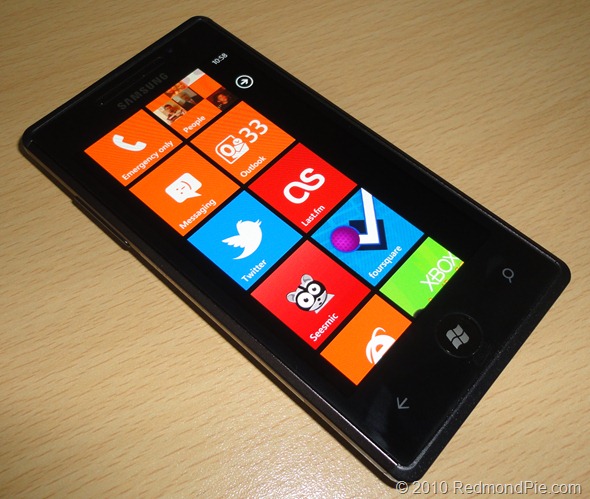
Homescreen: Omnia 7
From the official site:
Today we have an exciting breakthrough for the Windows Phone 7 homebrew community – the ability for anyone to unlock a WP7 device without a Marketplace developer account.
Unlocking allows the sideloading of experimental applications that would otherwise can’t be published to the Marketplace, such as those which access private or native APIs.
The following step by step guide will help you jailbreak (or unlock; that’s what the developers are calling it for WP7 phones) your device so that you can install apps without needing Windows Marketplace.
NOTE: Unlocking Windows Phone 7 with ChevronWP7 may void the warranty, disable phone functionality, interrupt access to Windows Phone 7 services or render the phone permanently unusable. Proceed at your own risk only.
Step 1: Download and install the latest version of Zune desktop software for Windows.
Step 2: Download and install the latest version of Windows Phone SDK, OR simply download this registry key and execute it on your Windows machine with administrative access. This registry key will add the following entry:
[HKEY_LOCAL_MACHINE\SOFTWARE\Microsoft\WindowsPhone\ProxyPorts]
“DeviceReg”=dword:000069C5
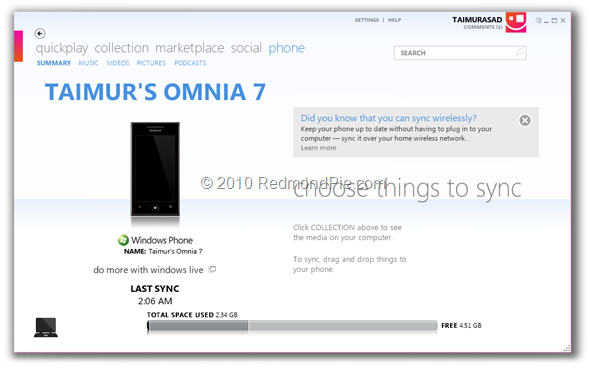
Step 3: Now connect your Windows Phone 7 device (Samsung Omnia 7 in my case) with your PC via USB.
Jailbreak Unlock WP7
Step 4: Start Zune software and sync your device. Make sure your device has a “full sync” relationship, and NOT “guest” relationship with the Zune software as shown in the screenshot below.
WP7 Unlock Jailbreak
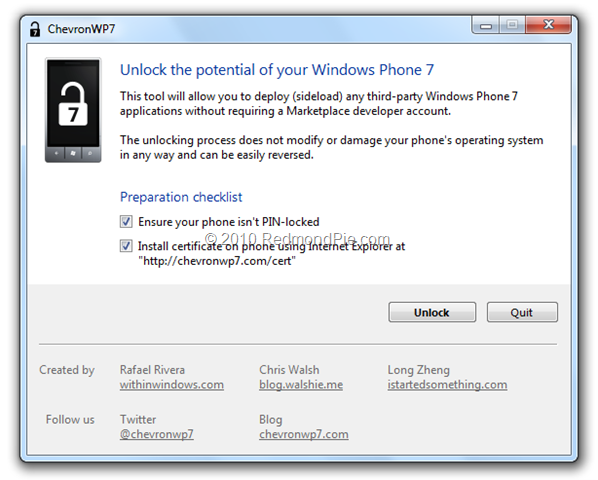
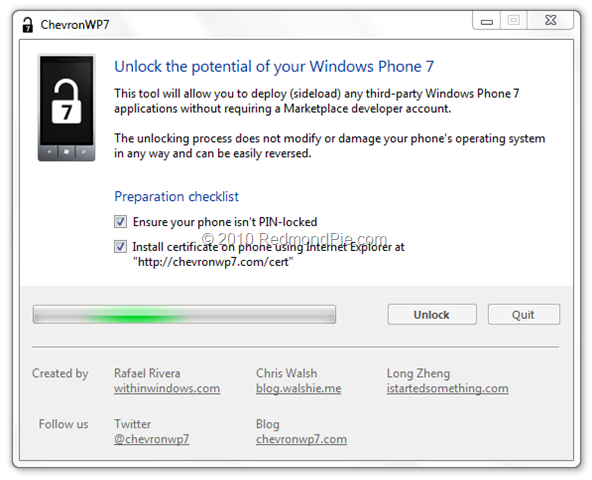
Step 5: Download ChevronWP7 (Windows Phone 7 Unlocker app) and run it.
Step 6: Before unlocking, make sure your device is not locked with a PIN.
Step 7: Check “Ensure your phone isn’t PIN-locked” and “Install certificate on phone using Internet Explorer at http://chevronwp7.com/cert” options, and then click on the “Unlock” button.
WP7 Unlock Jailbreak (1)
WP7 Unlock Jailbreak (2)
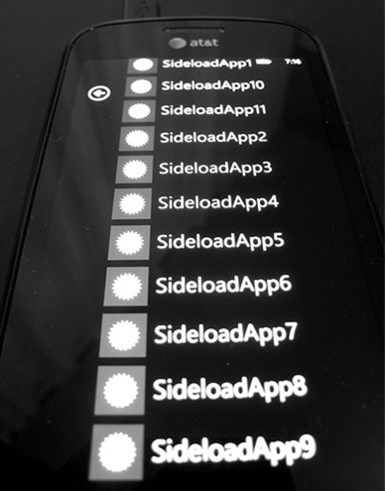
Step 8: That’s it! your phone is now unlocked ! You can now install (sideload) any third-party WP7 app without requiring a Marketplace developer account.
The best thing about this “unlocker / jailbreak” is that it is completely reversible. If you connect your phone with PC again and run ChevronWP7 app, you will notice a “Relock” button which will allow you to relock your phone to its original state.

[Source]